
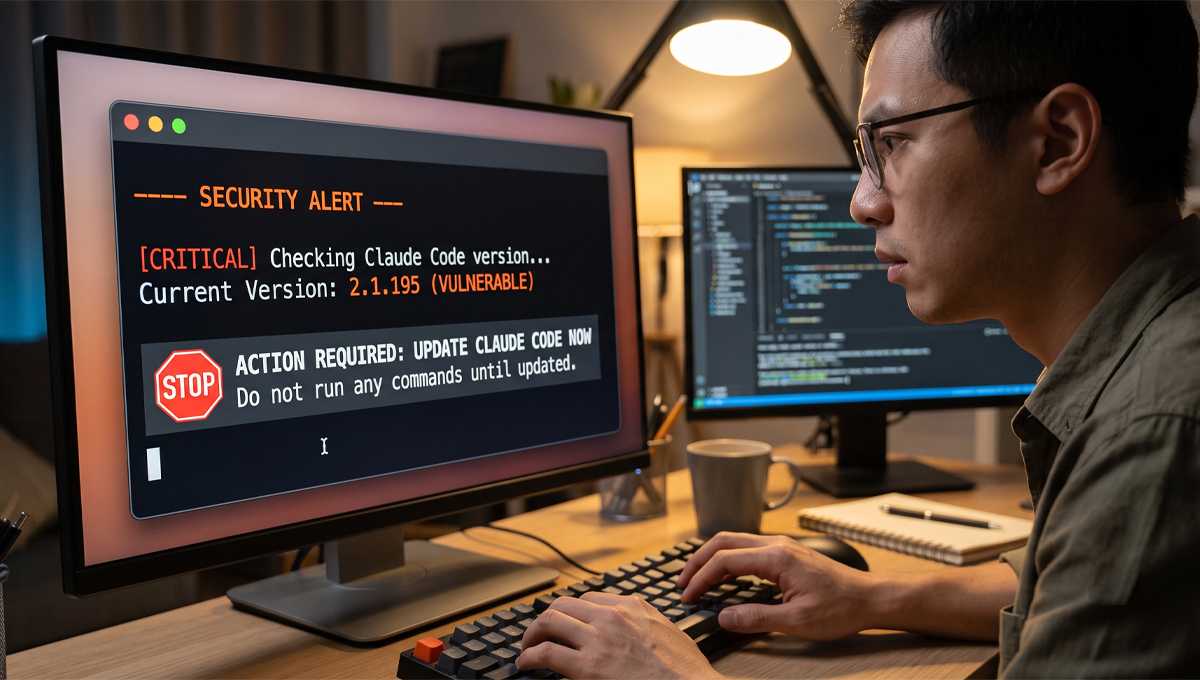
Quick Answer: If you use Claude Code, check your version number immediately. If you are running anything between 2.1.91 and 2.1.196, you need to update to the latest version now to mitigate reported security risks.
- Why this ‘back-door’ warning matters to you
- Step 1: Check your current version number (The easy way)
- Step 2: How to safely update or uninstall your software
- To Update:
- To Uninstall (If you want a break):
- Step 3: A quick ‘Data Hygiene’ audit for your AI tools
- The bottom line: How to stay safe without being a tech expert
You sit down at your desk. You open your terminal. You get ready to automate that tedious project you’ve been dreading. But then, you see the headlines. A warning flashes across your screen about a “back-door” vulnerability in the tool you use every single day. Panic sets in. You aren’t a cybersecurity expert. You just wanted to write some better code.
Here is the thing: technical jargon is designed to make you feel helpless. It’s meant to sound like you need a degree in computer science just to keep your files safe. You don’t. You need a clear, calm, and actionable plan. If you use Claude Code, you need to stop, breathe, and perform a quick security sweep before you run another line of code.
Why this ‘back-door’ warning matters to you
Security reports regarding specific software versions can feel abstract. You might think, “I’m just a small business owner,” or “I’m just a student, who cares about my scripts?” The problem is that a back-door vulnerability isn’t about how big you are. It’s about access.
When a tool has a security flaw, it essentially leaves a window open. This vulnerability specifically concerns the potential for sensitive information—like your location, your system identity, and your internal project data—to be sent to a remote server without your permission. It happens behind the scenes. You won’t see a pop-up. You won’t get a notification. It just runs in the background while you focus on your work.
🔍 Reality Check: You don’t need to be a high-profile target to be affected by software bugs. Automated security flaws affect everyone using the vulnerable version, regardless of who you are or what you are building.
Step 1: Check your current version number (The easy way)
Before you do anything else, you need to know if your installation is on the “danger list.” Anthropic released versions between 2.1.91 and 2.1.196 during a specific window, and these are the versions specifically flagged by security analysts.
Checking this is fast. You don’t need to dig through complex system files or configuration folders.
- Open your terminal or command prompt.
- Type
claude-code --versionand hit enter. - Look at the number that appears on the screen.
If your version number is 2.1.91, 2.1.196, or anything in between, you have work to do. If your number is higher (for example, 2.1.204 or newer), you are likely using a version that has moved past the reported vulnerability window. Write that number down. Keep it visible. It’s your first line of defense.
Step 2: How to safely update or uninstall your software
If you fall into that middle range of version numbers, don’t panic. You aren’t doomed. You just need to update. Software developers release updates specifically to patch these kinds of holes.
To Update:
Most of the time, updating your tool is the simplest fix. Run the update command provided by the tool’s official documentation. Usually, this looks like npm install -g @anthropic-ai/claude-code@latest or a similar command depending on how you originally installed it.
To Uninstall (If you want a break):
If you’ve lost trust in the tool or you’re worried about what might have happened while you were using an older version, just delete it.
* On macOS or Linux: Use npm uninstall -g @anthropic-ai/claude-code.
* If you aren’t sure how you installed it, check your installed applications list or your global package manager.
💡 Quick Tip: If you decide to uninstall, take a moment to look at your project folders. If you’ve been using the tool to handle sensitive API keys or passwords, consider rotating those keys. It’s a bit of extra work, but it’s the safest way to ensure that any potential leak is neutralized.
Step 3: A quick ‘Data Hygiene’ audit for your AI tools
Once you’ve updated your software, don’t just go back to business as usual. Use this moment to clear the air. A security scare is the best reminder that we are all responsible for our own digital hygiene.
Follow this checklist to make sure your workspace is locked down:
- ✅ Review your environment variables: Check for any hard-coded API keys or passwords in your scripts. Never leave them in plain text.
- ✅ Check your system logs: Briefly look at recent activity to see if any unexpected network requests were made while you were working.
- ✅ Update your other tools: Security doesn’t end with one tool. If you use other AI assistants or coding extensions, make sure those are updated too.
- ✅ Verify your permissions: Ensure that the folders your AI tools have access to are limited. Only give them access to the specific project folder they are working on, not your entire computer.
- ✅ Enable two-factor authentication: If the platform you use to manage your code supports 2FA, turn it on immediately. It’s the single best way to protect your account.
The bottom line: How to stay safe without being a tech expert
You don’t have to be a cybersecurity genius to protect your work. You just have to be consistent. Security isn’t a one-time event; it’s a habit. By checking your versions, keeping your tools updated, and maintaining strict control over what your AI tools can see, you are doing more than 90% of other users.
⚠️ Warning: Never ignore a security update notification. Even if it feels like a nuisance, those small downloads are what keep your projects private. If a company releases a patch, it’s because they know something you don’t. Install it immediately.
Staying safe with modern tools requires a mix of healthy skepticism and routine maintenance. You’ve taken the first step by being aware of the risks. Now, keep that awareness going. Check your version. Update your software. Audit your data. Keep your work yours.
The digital world is fast, and sometimes that speed brings risks. But when you have a plan, you aren’t just a user—you’re in control. Take these steps today, clear your mind, and get back to building things that matter.